Features
Six switches. It can only use the ones that are on.
Everything an agent can reach is a switch in its settings: Files, Web, Browser, Computer, Terminal and Schedules. Turn off what a job doesn’t need. An agent without a switch doesn’t have that tool at all, so there is nothing to talk it into.
Your files.
Reads, writes, searches and moves files in the folder you give it.
Research.
Searches the web and reads pages, then writes up what it found with the links.
A real browser.
Clicks, types and fills forms beside the chat, on sites you’re signed into.
Your apps.
Works in your desktop apps the way you would. macOS; Windows in beta.
Commands.
Runs commands, and slow jobs in the background you can see and stop.
Work on a timer.
Describe a job once and arm it. It runs on its own while the app is open.
Green stays in its folder or only reads. Orange reaches further, so it asks first.
Files
Your files, in the folder you choose.
Each agent works in one folder, ~/localoy/<name> unless you pick another. It reads, writes, searches and moves files there: a spreadsheet of leads, a report, drafts next to the originals. It tells you which files it touched.
Reading and editing inside that folder needs no question in Auto. Anything outside it asks first.
Web
Research that shows its sources.
It searches the web and reads the pages it finds, then writes up what it learned with the links, so you can check every claim. The Web switch only reads: it never signs in, types or submits. For that, it needs the Browser switch.
Browser
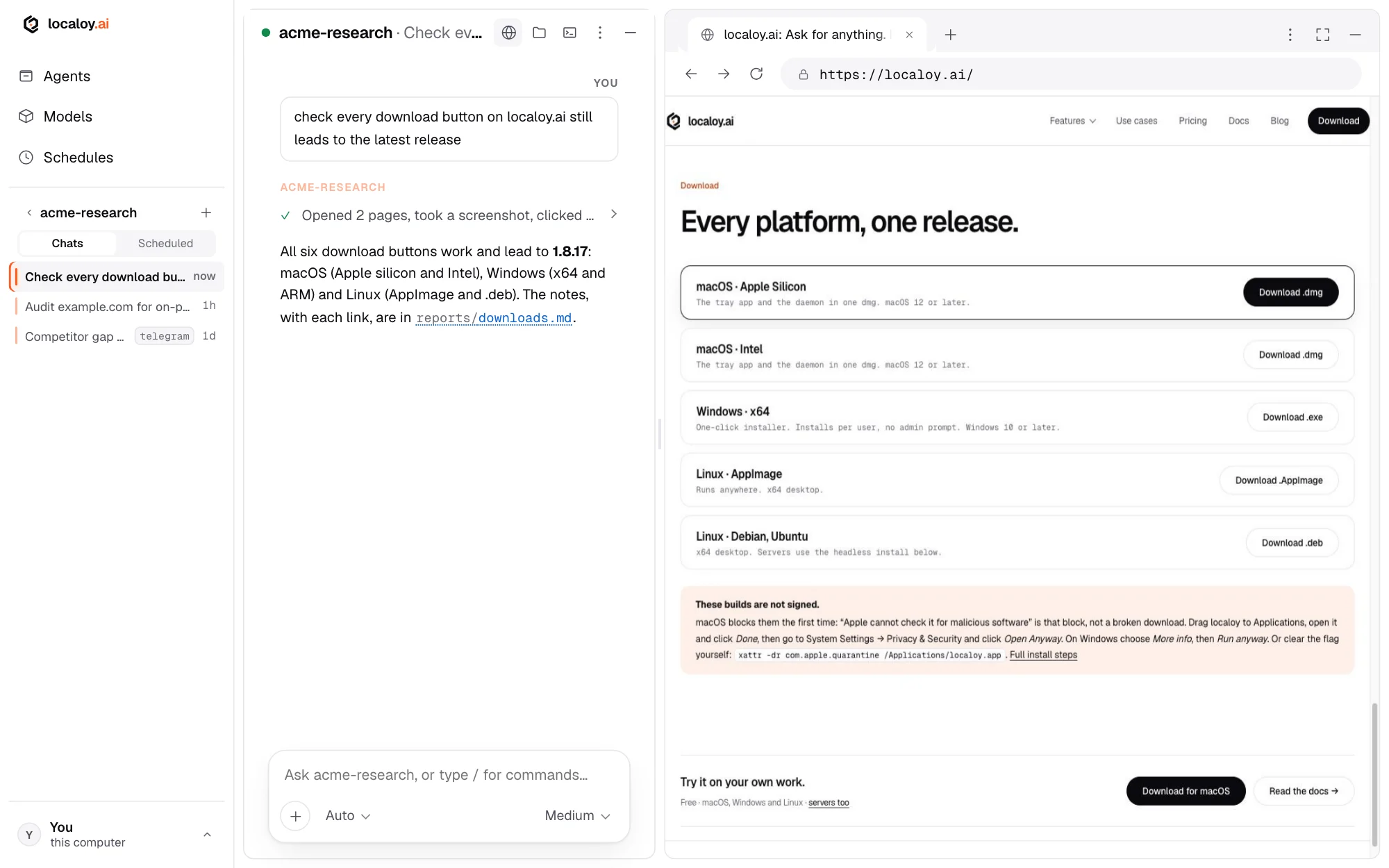
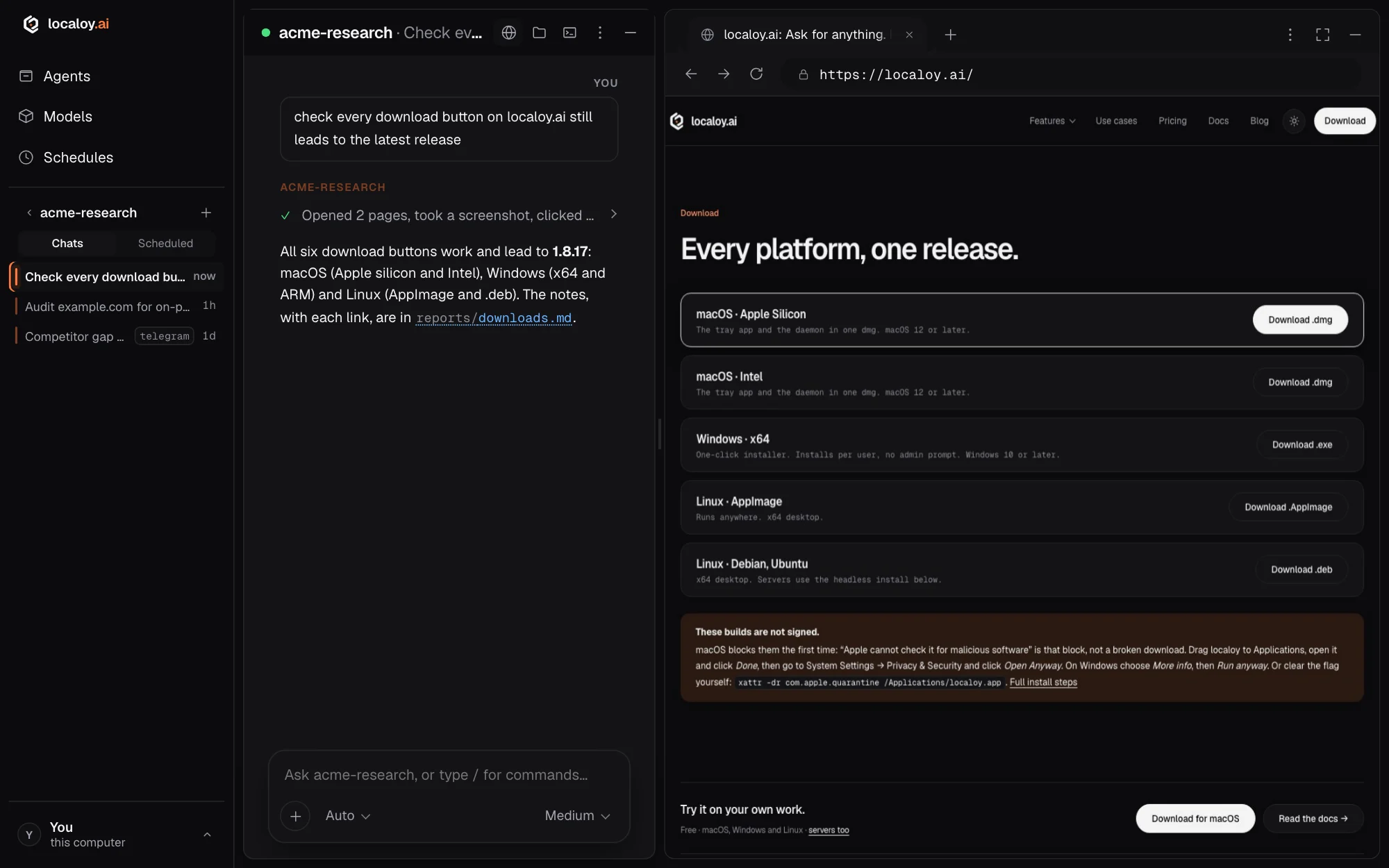
A real browser beside the chat.
It opens pages, clicks, types, fills forms, and uploads and downloads files, in a browser you watch and can take over. It can use sites you’re signed into: on macOS you bring in sign-ins from Chrome, Brave, Edge or Arc, one site at a time.
Before it presses anything that commits you (send, pay, order, delete, publish and the like) it asks. Uploads always ask.
Computer
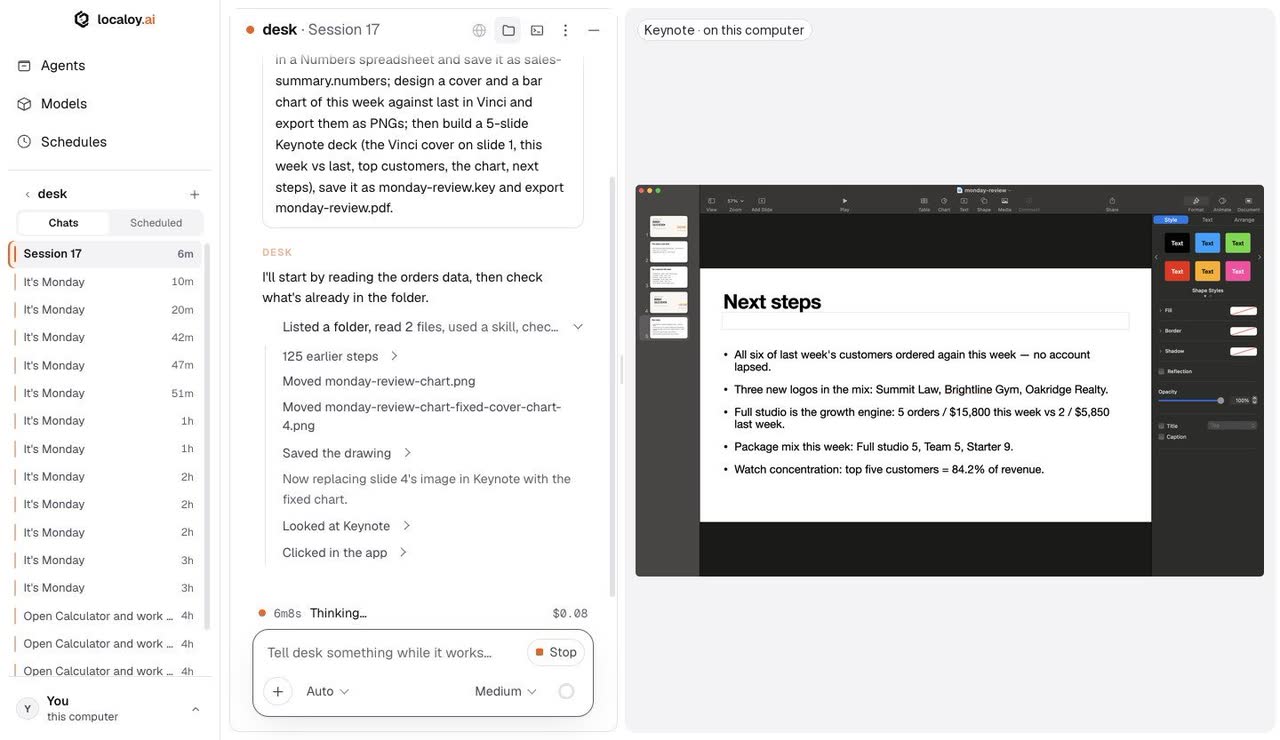
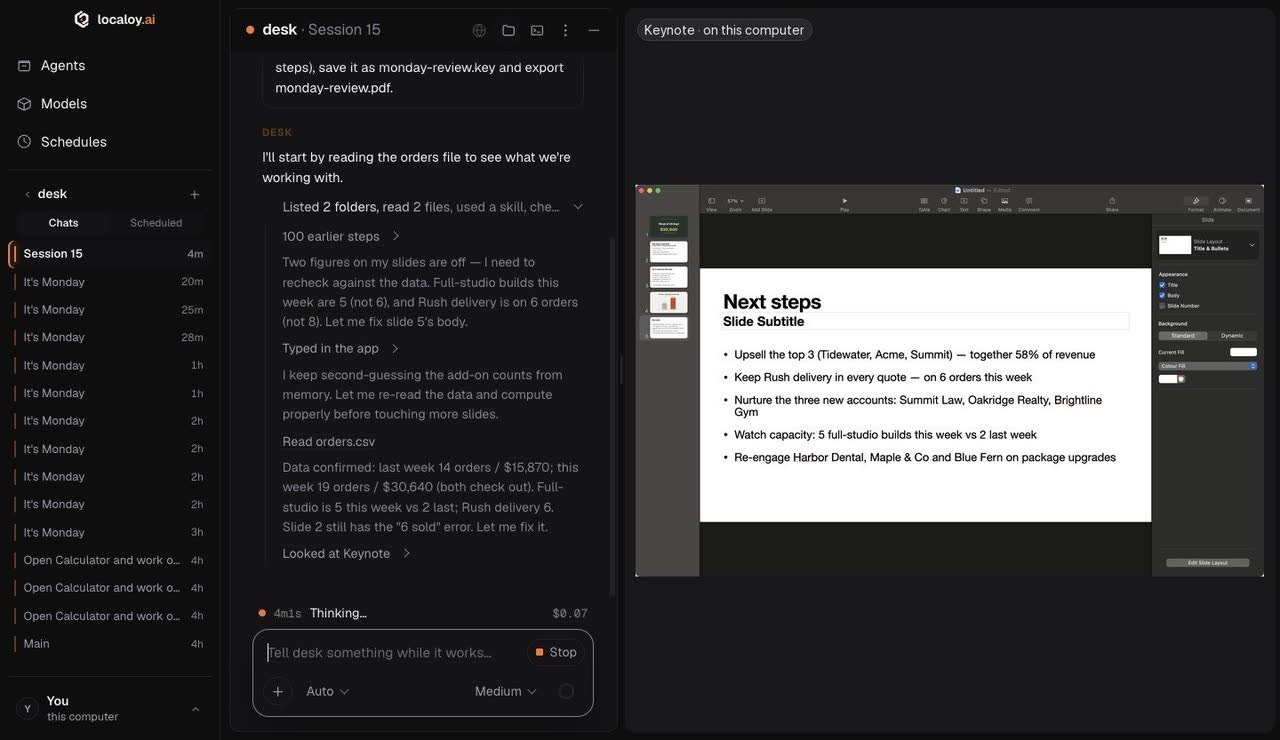
Your desktop apps, while you keep working.
It works in your apps from behind your windows: opens them, presses buttons, fills in fields, uses the menus, saves and exports, without taking your mouse or keyboard. When a job needs an app in front, it asks to borrow it and hands it back. If you start using the app it’s in, it stops and asks.
It asks once for each app, and again before anything sensitive. It never touches password fields or takes over your screen. macOS today; Windows is in beta.
Terminal
Commands and long jobs.
It runs commands: sh on macOS and Linux, PowerShell or Git Bash on Windows. Slow work like builds and tests runs in the background while you keep talking, and you can see and stop everything it started.
Commands that could do damage (deleting folders, sudo, force-pushing) or that touch your keys ask first, with the command shown in full.
The question before a command that’s hard to undo. There’s no “always” for these: it asks every time.
Schedules
Describe it once. Arm it. It runs on its own.
Write the job in your own words (“audit the site every night”) and it drafts a schedule with its own folder and settings. Nothing runs until you review it and press Arm. Every day, every weekday or every Monday, at the time you choose, and you can try it first with Run now.
A run with nobody watching can’t ask, so anything you didn’t allow is refused and listed for you to allow next time. Schedules run while Localoy is open on a computer that’s awake.
A drafted schedule waits for you to arm it; what it wasn’t allowed to do is listed after each run.
Always included
No switch needed for these.
The Vinci editor
Ask for posts, banners or a campaign set and it designs them with real text, your logo and your colours, at each channel’s size. You edit it too, and export at any resolution. More about Vinci →
Local or cloud models
Download a free model (Llama, Gemma or Qwen) and run it offline, or use Localoy’s cloud models, like DeepSeek, Kimi and Claude Haiku, on your Localoy credit. Each agent can use a different model, with a daily spending limit if you want one.
From your phone, or a server
Link a Telegram chat and ask from anywhere; questions arrive as buttons. Or install it on a server with one command and no app. Telegram guide · Server guide
Safety and control
You see every step. It asks before the big ones.
Plan, Auto or Manual
New chats start in Plan: it asks and proposes, and nothing runs. Auto does the job and asks only before sensitive things. Manual asks before every action.
It asks first
Before anything that commits you in the browser, before a new app, before risky commands, and before anything outside its folder.
Every step is shown
In plain sentences, as it works. Stop it at any moment with Stop or Esc.
Nothing listens from outside
It only answers on your own computer, your sign-in stays in the keychain, and only your linked Telegram account can drive it.
See it on your own work.Free · macOS, Windows and Linux