Features · Fizz Studio
Ask for the video. Get a finished cut you can change.
Fizz is the studio in Localoy. Tell it what the video is for and it plans the shots, draws the motion graphics, lights the cast in 3D, adds a voice, captions and music, and cuts it all together in VertX, the video editor on your computer. Then change anything yourself, with buttons that say what they do.
The first seconds of Fizz Studio’s launch film. Fizz made it in Localoy from prompts.
The launch film
One minute, made with nothing but prompts.
Fizz planned, made and cut this film in Localoy on DeepSeek V4 Flash, a low-cost model. Every frame was drawn on the computer: the motion graphics and the 3D characters are made shape by shape, not generated footage.
From the film
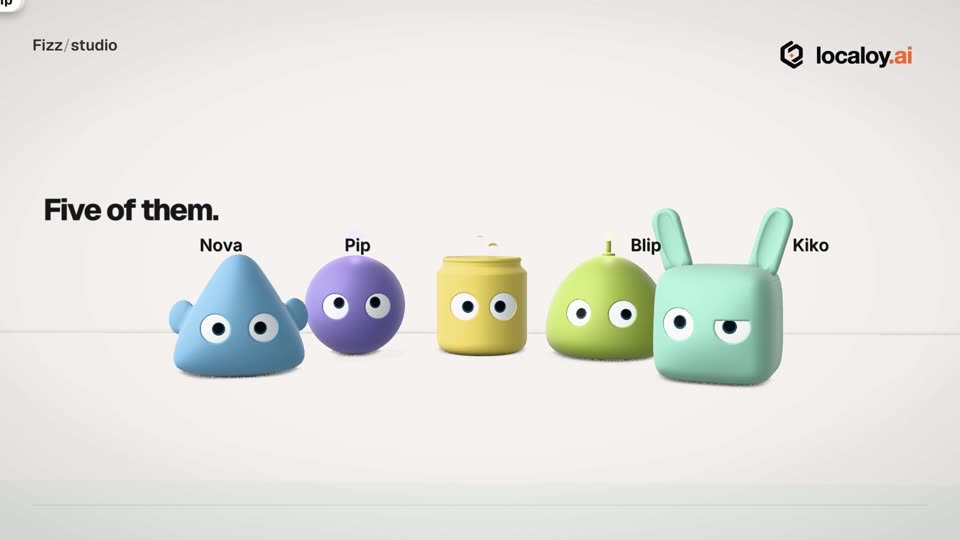
2D, 3D and type, in one cut.
What it does
A whole studio, in one chat.
Motion graphics
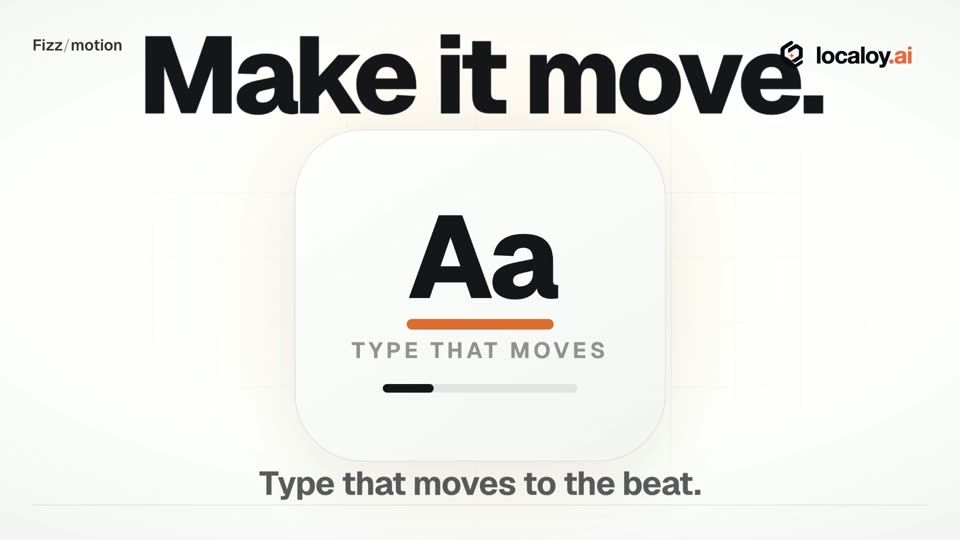
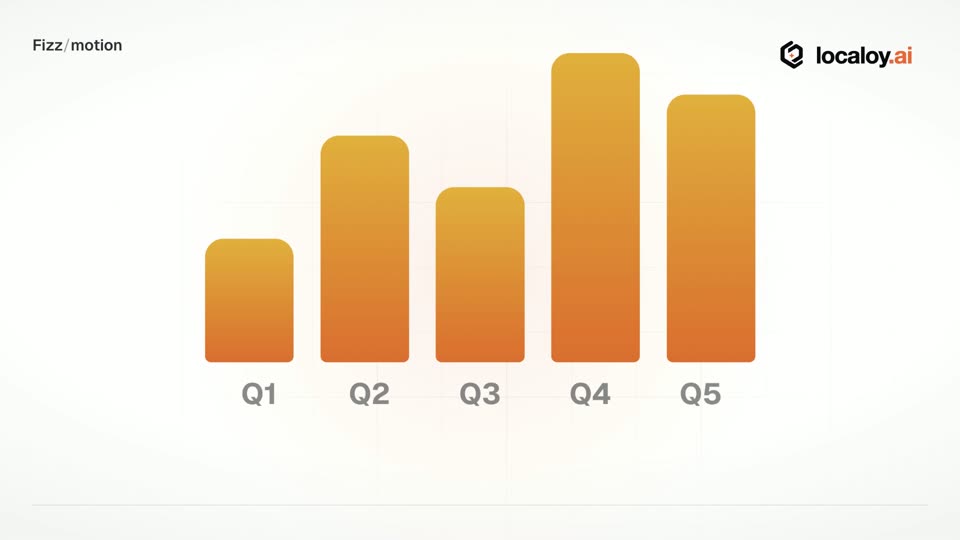
Titles, shapes, charts and shop cards, animated frame by frame. Words are typed, not painted, so they’re spelled right.
Characters in 3D
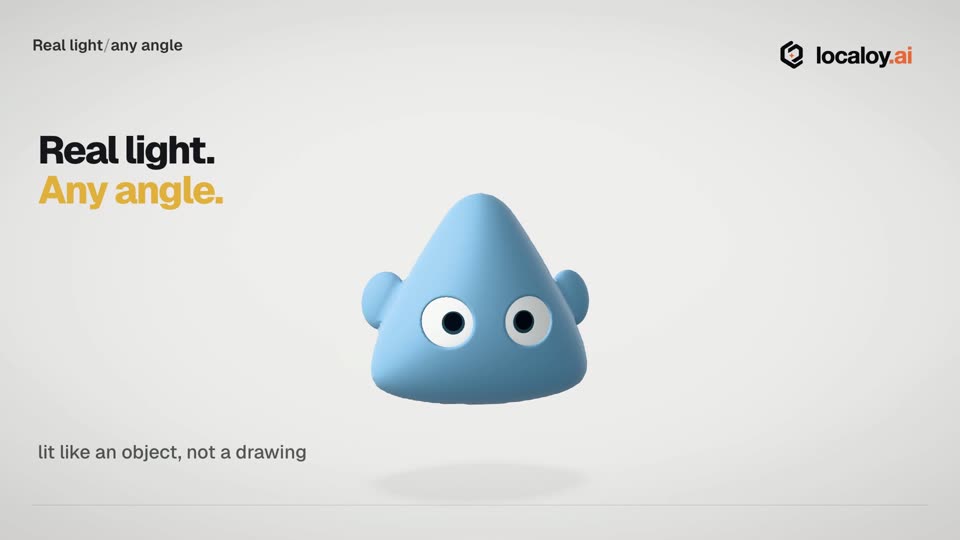
The Localoy cast, or your own 3D file, lit like a studio shoot and filmed from any angle. Attach a .glb and Fizz uses it as it is.
Voice and captions
A voiceover read in the voice you pick, with captions in time with every word. Other sound dips while it speaks.
Music and sound
Music made to a description, sounds from your own files, and podcasts with more than one voice.
Your footage, or new shots
It cuts the clips and pictures you give it, or makes new pictures and moving shots on your Localoy credit. It tells you the price before it makes anything paid.
Every shape
Tall reels and stories, square posts and wide 16:9 films, with transitions, colour grades and effects.
The VertX editor
Change it yourself. Fizz sees what you changed.
The video opens beside the chat with rows for scenes, words, voice, music and sounds. Click any piece and its settings appear in plain words: length, speed, how a scene comes in, volume, fades, where words sit. Drag a scene to reorder it, drag a yellow edge to make something shorter or longer, and the rest moves to fit. A How beside every setting explains it, and Undo and Redo are always there.
It works with a mouse, a trackpad or a touch screen, each with its own moves: scroll or swipe to move along, pinch to zoom, right-click or a two-finger click for more. On a touch screen you slide the video under a fixed line, hold a piece to lift it, and settings slide up from the bottom.
Press Play any time. A quick preview of your latest change is made by itself in the background, and the full-quality file is made only when you save. Fizz works on the same project and is told exactly what you changed, so it keeps your edits.
The settings VertX shows for a scene. Words get Place and Look; voice, music and sounds get Volume, Fade and Start here. Every action on every device →
On your computer
The cut renders on your computer, into your folder.
VertX keeps each video as a project file in the chat’s folder, beside every clip, voice line and picture it used, and saves the finished MP4 into a videos folder there. Nothing is uploaded to edit it, and you can open the project again next week to change one line.
Plan first
See the plan before anything is made.
In Plan mode Fizz writes the script and the shot list and asks what it needs before it makes the video. Switch to Auto when the plan is right, and it makes the video while you watch.
How to start
Three steps.
Start a chat with Fizz
Pick Fizz on the Agents page and say what the video is for: a launch, an explainer, this week’s reel. Attach your clips, logo or a character file if you have them.
Agree the plan
In Plan mode it writes the script and shots and asks what it needs. Open VertX Editor from the chat’s menu to watch it come together.
Switch to Auto, then change what you like
It makes and cuts the video. Tap anything in VertX to change it, ask for more, then press Save video.
Make your next video with Fizz.macOS, Windows and Linux